
Hey, fellow learners! 👩💻
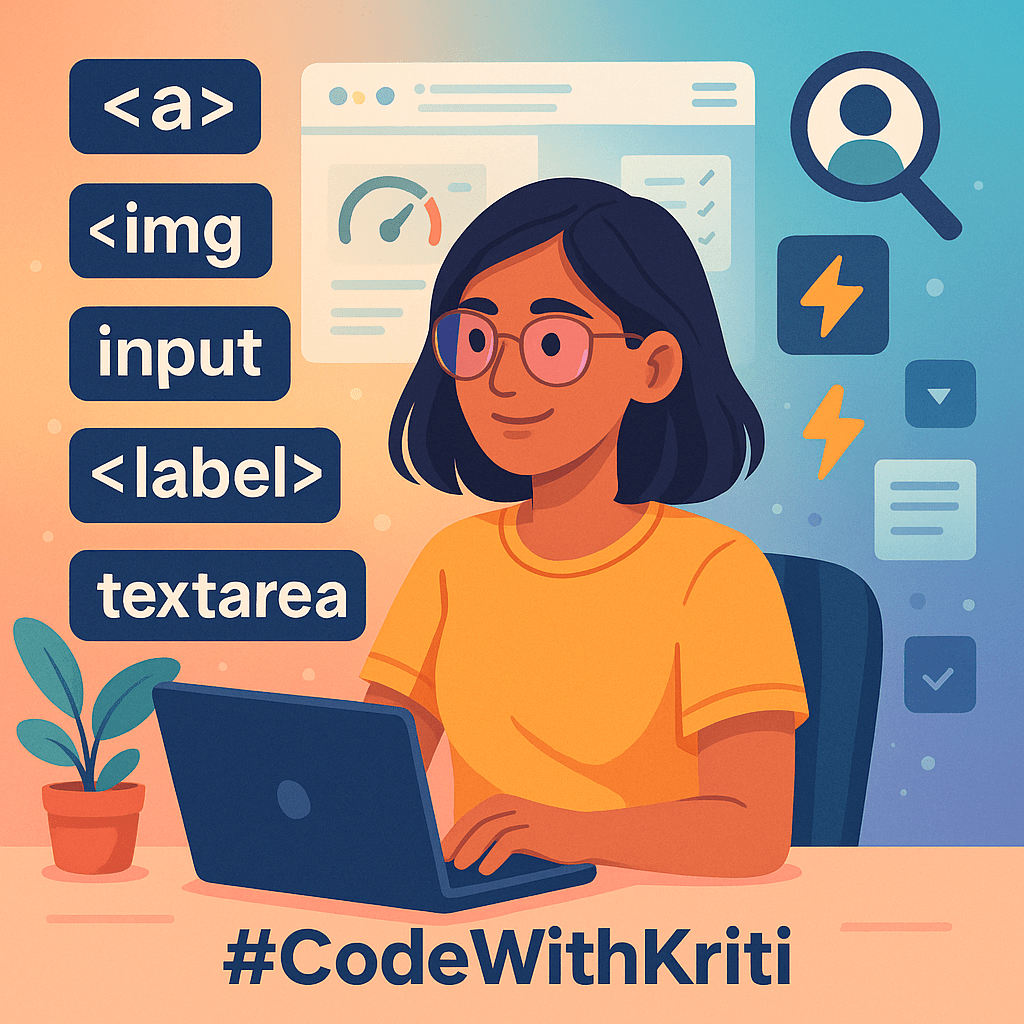
As I’ve been writing more code, I’ve realized — HTML is full of hidden gems 💎. I knew about the basic stuff (like href, src, alt) but there are so many underrated attributes that make your website smoother, smarter, and way more user-friendly.
So today, let’s talk about a few lesser-known but seriously useful HTML attributes — and how you can actually use them in real-life projects.
🔗 1. download with <a> — Make It a Click & Save
You can actually let users download a file straight from your website. No extra code. Just this:
<a href="resume.pdf" download>Download My Resume</a>
✅ Where I’d use this: On my portfolio site when I want people to download a resource, guide, or résumé — clean and professional.
🖼 2. loading="lazy" with <img> — Let the Page Breathe
Images slow down websites. But you can ask the browser to load them only when needed:
<img src="birthday-card.png" alt="Birthday card project" loading="lazy">
✅ Where I’d use this: On blog posts with multiple images — it’ll load faster, especially on mobile.
✍️ 3. autocomplete with <input> — User Experience Win
Help users save time by letting the browser fill info they’ve already typed somewhere else.
<input type="email" autocomplete="email">
✅ Where I’d use this: Contact forms or newsletter signups — makes it super easy for returning users.
🎯 4. formaction with <button> — One Form, Two Purposes
You can have multiple buttons inside a form and direct each to a different destination.
<form>
  <button formaction="/subscribe">Subscribe</button>
  <button formaction="/contact">Contact Us</button>
</form>
✅ Where I’d use this: A form with options like “Apply” or “Ask a Question” — both go different places.
🔢 5. step with <input type="number"> — Control the Flow
Instead of letting users type random numbers, control the increments.
<input type="number" min="0" max="100" step="5">
✅ Where I’d use this: Pricing input, donation sliders, rating scales.
🗣 6. maxlength with <textarea> — Set Some Boundaries
Don’t let users write an entire novel in your comment box 😅
<textarea maxlength="150" placeholder="Write your thoughts..."></textarea>
✅ Where I’d use this: Feedback forms or comment sections — keeps things clean and to the point.
📝 7. novalidate with <form> — For Custom Validation
Don’t want browser default errors? Want to style your own messages? Use this:
<form novalidate>
✅ Where I’d use this: When I want to show a cute red warning or validate with JS later.
🔗 8. for with <label> — Small Tag, Big Impact
Not new, but so underrated. It links a label to a form field, improving accessibility.
<label for="email">Email:</label>
<input id="email" type="email">
✅ Where I’d use this: Always. Especially for screen readers and better UX.
🧠 Bonus: Combine Smartly
Here’s a quick smart combo for names-only fields:
<input type="text" required pattern="[A-Za-z\s]+" title="Only letters, please!">
✅ Where I’d use this: Name fields, city fields — clean and user-friendly input every time.
🎯 Wrapping It Up
I used to think HTML was basic. Just structure, right? But turns out — it has superpowers. These small attributes add polish, boost speed, improve accessibility, and make your code smarter.
Hope you found something new today!
Let me know which one was your favorite — or one you plan to use next.
Till then,
Happy coding (and exploring tiny HTML gems)! 💻🌱
 CodeWithKriti
Leave a comment